
Contents
In Microsoft Teams
Create Workflow
1. Ensure the Workflows app is installed in your desired channel
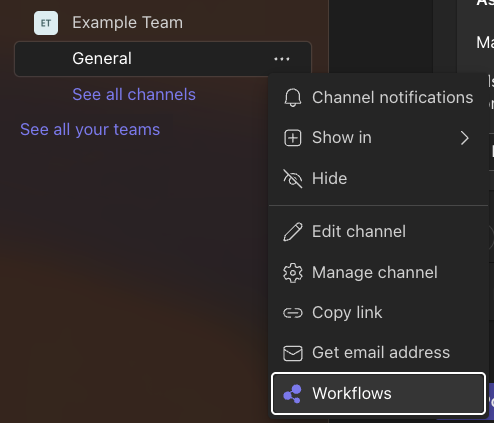
2. Open the workflows app within your desired channel
3. Select the template named "Send webhook alerts to a channel"
4. Ensure the user listed within the "This flow will connect to" section is correct
Notifications created in Teams will be credited to the Workflows app, rather than this user; however, a note will be shown stating that the chosen user created the Workflow.
5. Ensure the correct Team and Channel are selected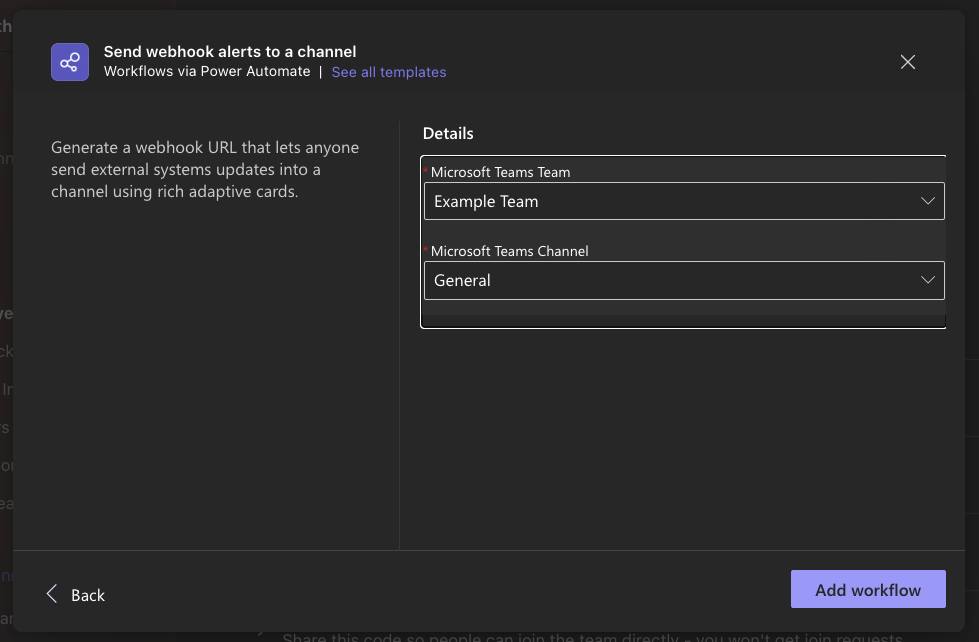
You must select a public channel. At time of writing private channels do not support such integrations - this is a Microsoft restriction.
6. Click Add workflow
7. Copy the URL
Once the workflow has been created, Teams will present you with a URL. Copy the URL, you'll need this to configure AppCheck.
In AppCheck
Create Integration
8 Create New Team Integration
From the main menu in the AppCheck Portal, select Integrations Hub
Select Microsoft Teams
9 Click Add Microsoft Team Integration
- The connection name is used to help you identify the correct connection to enable when configuring scans.
- In the Webhook URL, paste the URL you copied from Microsoft Teams' Workflow app.
- Click Enabled to make the integration available to use.
This does not add the integration to any scans, it simply makes it available.
10. Click Save
Add Integration to Scans
11. Open your scan configuration page
This can be found in several ways:
- Opening the scan results then clicking the Settings tab
- Selecting... then Edit Settings on the All Scans table
- Creating a new scan
12. Expand the Integrations section
You may see a similarly named Integration Settings section. This section contains legacy integration settings and is not used for Microsoft Teams.
14. Click Manage Active Integrations
15. Expand the Microsoft Teams section, and tick the box next to the integration you wish to enable 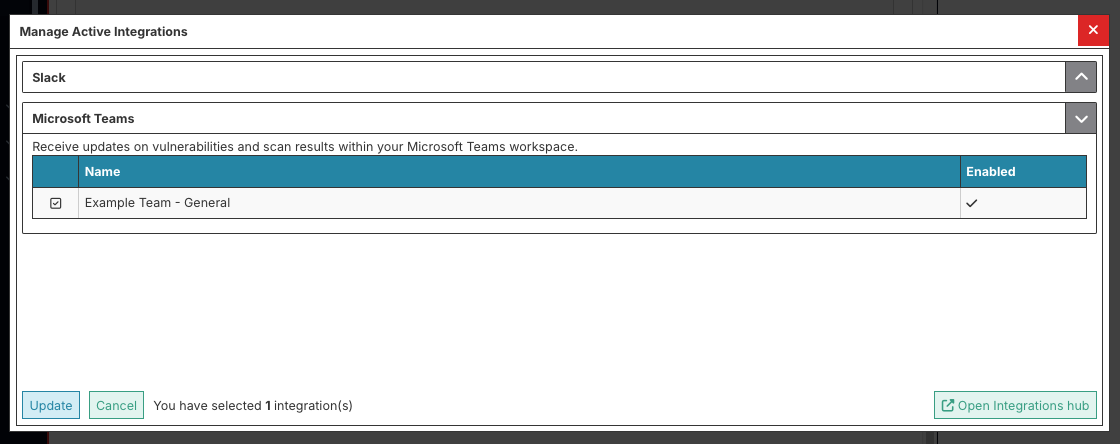
16. Click Update
17. You'll now see the number of integrations activated for this scan. Click Update again to save your scan
Your scan is now configured to send updates to your chosen Teams channel.
Comments
0 comments
Article is closed for comments.